If you’ve been thinking about switching to Linux for gaming but always held back because of compatibility or performance worries, SteamOS might be the turning point.
It’s not just a lightweight Linux distro with Steam slapped on.
Valve built this thing from the ground up for one purpose: to play games, and to do it well.
SteamOS is developed by Valve, the same company behind Steam, Half-Life, and Portal.
It’s based on Arch Linux and uses KDE Plasma as its desktop environment.
So you get a modern, customizable UI with access to bleeding-edge updates.
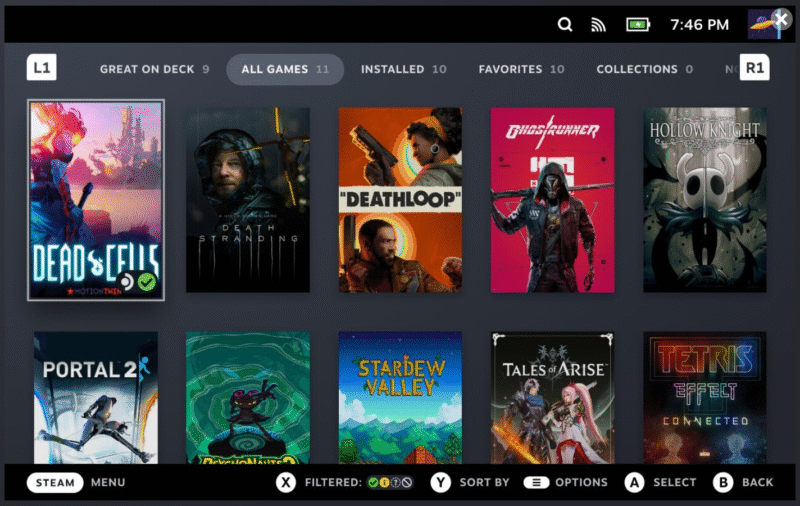
It comes preloaded with Steam in Big Picture mode, making it ideal for couch gaming setups. But you’re not locked into that. You still get a full Linux desktop experience under the hood.
SteamOS is the OS powering the Steam Deck. That handheld PC has shown that Linux can absolutely handle modern gaming.
Valve has put a ton of work into getting more games running smoothly using Proton, their compatibility layer based on Wine.
Thanks to Proton and the ever-growing compatibility list, many Windows-only titles now work out of the box. You can check compatibility for specific games on ProtonDB{target=”_blank”}.
Performance and System Resource Benefits
SteamOS is streamlined. No bloatware. No background nonsense you have to disable.
That means more of your hardware’s power goes to your games.
And since it’s Linux, system updates are under your control. No forced restarts in the middle of a game session.
Steam Games? You can get them working!
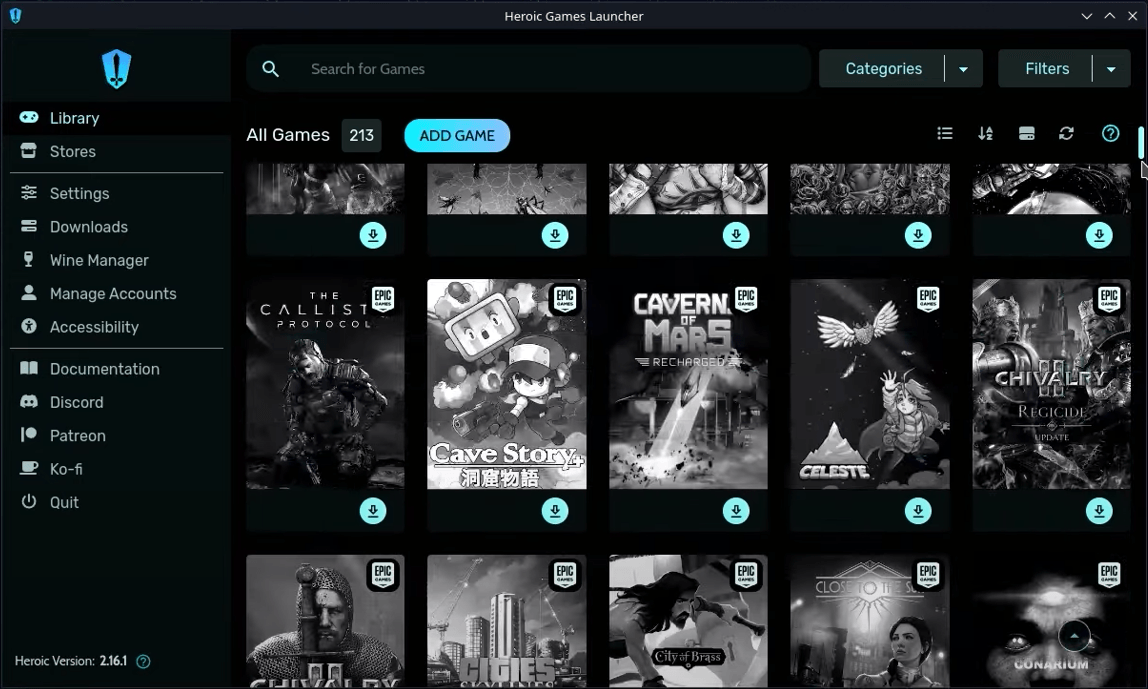
Want to play games from Epic Games Store or GOG? That’s where tools like Heroic Games Launcher and Lutris come in.
Heroic Games Launcher is a clean, open source tool that makes it easy to install and run games from Epic or GOG on Linux. It even supports Proton and Wine configurations per game.
Lutris is another powerful launcher that supports a wide range of game sources: Battle.net, Origin, Ubisoft, emulators, and more. It automates Wine setups and tweaks, saving you time and headaches.
Both tools work really well on SteamOS and can be added to Steam as non-Steam apps, so you can launch them right from the Steam interface.
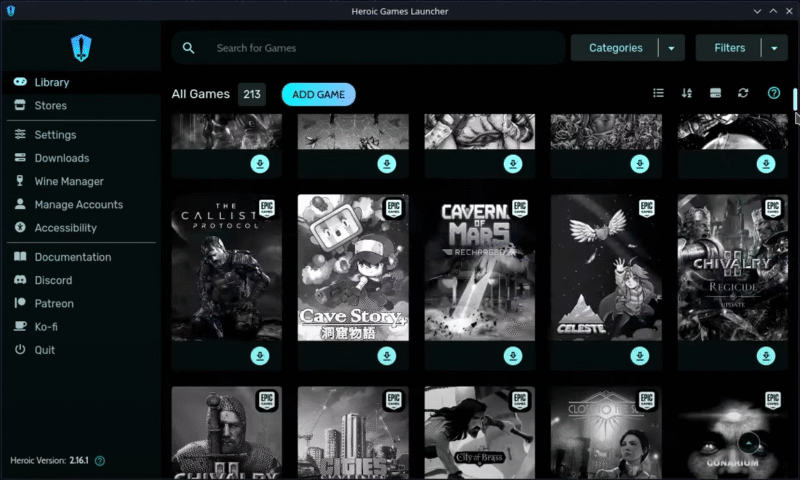
Heroic Games Launcher running on SteamOS with a game library visible
But There Are Some Tradeoffs
If you’re coming from Windows, be ready to tinker a little. Some anti-cheat systems still don’t play nice with Proton. Not every game on Steam works yet.
Also, third-party launchers like Battle.net or Epic require some extra setup.
Driver support is also hardware-dependent. Most AMD GPUs work great out of the box, but if you’re on NVIDIA, expect a little extra setup to get peak performance.
If you love to tweak your system, want more control, or just prefer open source tools, SteamOS is a solid option. It’s also great for building a dedicated gaming PC or living room console that boots straight into Steam.
But if you need every game to work without any effort or rely on Windows-only software, you might want to dual boot.
Download SteamOS here!
If you want to try SteamOS, you can download it here. Extract the ZIP-file and get a USB-stick.
Rufus is a free tool that’ll get you all the options you need to make a working USB stick to boot the SteamOS installation from.
Don’t use Windows built-in tools as they often wont work.
Set Rufus to use FAT 32 and MBR. Then choose the ISO file you extracted and click “START”.
Related posts:
LocalCDN - Surf with Increased Privacy. Keep Fonts/Scripts Local
Best lightweight email clients for old PCs