I finally solved the problem and updated the firmware! At first I couldn’t get it to work with my 32″ Odyssey G55C monitor.
Why should there be a such a problem to update the firmware! I formatted a USB stick as FAT32 as the manual say you should do, I follow each step carefully. I extracted the ZIP-file and just did copy it over.
I tried again and again but I finally solved the problem! And it didn’t work! The monitor couldn’t find the firmware on the USD.
But I finally found a solution. I’m sure it will work with other Samsung Monitor Models too.
Like Samsung Odyssey G4, G6, G7, G8, G9 and so on…
To see what Model Code your monitor got, press the button under your monitor.
Select “Menu”.
Select “Support”.
Select “Information”.
Write down your exact “Model Code”. Also your firmware version will become handy later.
For example, my Model Code looks like this: LS32CG552EUXEN
Go to Samsungs website – This is important: Make sure you choose your country/language!
I also had to use Microsoft Edge and disable adblockers to get their site to work properly.
Rant: Samsungs website sucks! I couldn’t find my exact monitor model at first when I choose US English.
I bought my Samsung G5 Odyssey 32″ monitor in a country within EU, so the Model Code is a bit different! Who made this website and the whole search function? Fire him/her/them…
Ok, lets move on. Click/Hover on “Support” and then click on “Manual & Software”.
Type in your Model Code. You will now, hopefully, see your product, click on it.

Look under Firmware, check if the firmware you can download is newer than the one you currently got.
Download it and extract the file. It could either be a .bin file or a .img file.
Now, the following is what will solve most of the problems for people who tries to update their Samsung monitors firmware, so follow these steps carefully!
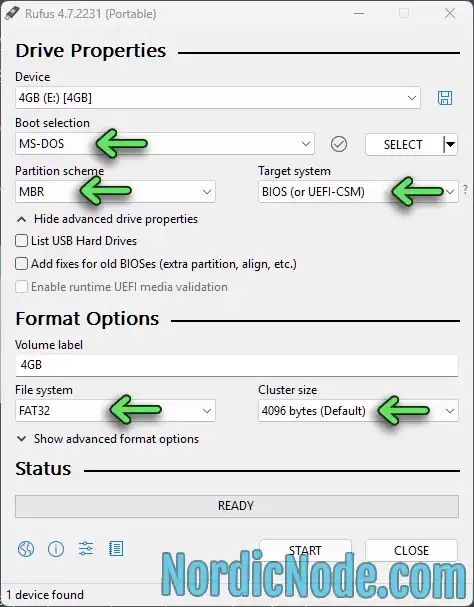
Don’t use Windows built-in tools to format the USB stick. Download Rufus (Free Windows Application which is handy to get USB sticks working correctly.) and use it to format the USB stick.
The portable version of Rufus will be enough, you don’t need to install it.
After you start up Rufus, choose the correct USB device.
Make sure you change the settings to the values that the green arrows are pointing to in the screenshot below. Then click “START” to format the USB stick.
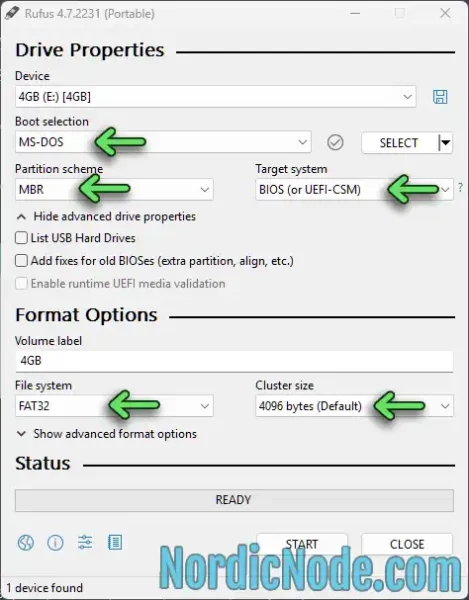
Ok, now copy the Firmware file you extracted earlier and copy it to the USB. Do NOT put it in any folder. And do NOT rename it. After it’s completed. Eject the USB drive and plug it into the Service USB port behind your monitor.
Then push the button under the monitor and select “Menu”, “Support”, “Software Update”.
And this will most likely work and you’ll get a fresh firmware on your Samsung monitor.
If not, try the same thing but with another USB stick. Good luck!
Related posts:

Try these tips to fix the PS3 error 80010017
Announce to these torrent trackers (May 2024)
You are booss
THANK YOU!!!!!! U R THE BEST!!!I tried updating several times and nothing. Your method helped.
goated!
Hi,
I found this 2026, 1st of August. This helped me when everything else failed. Thank you!